¶ Software Update Guide
¶ 1. Operating Steps
¶ Obtain Update Source
Official Download:Visit the em-smart official support page or the designated em-smart Lab Official Download. Locate the latest installation package for your specific model under the "Software Updates" section.
USB Drive Update:If the device supports offline updates, copy the downloaded package to the root directory of your USB drive. Do not delete previous installation packages or drivers. Keep the filename as default; do not modify it.
¶ Execute Update
Online Update:
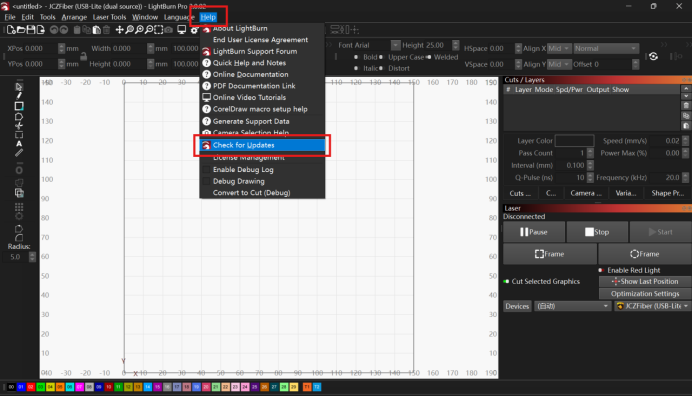
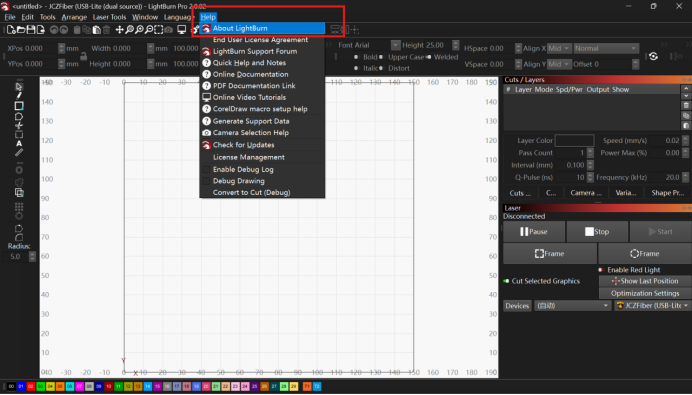
- Open LightBurn, click the menu bar: Help → Check for Updates.
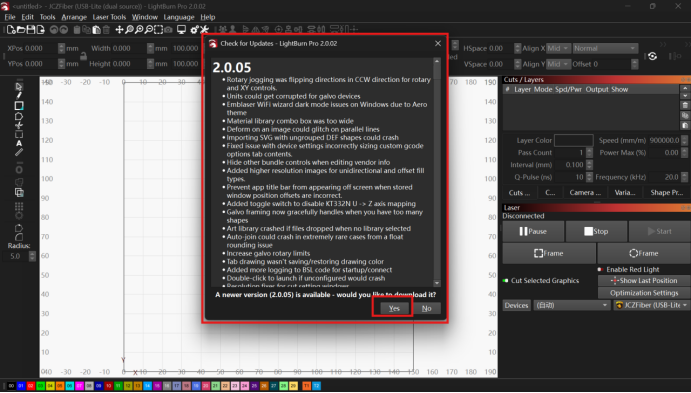
- Wait for the system to redirect. DO NOT click "Cancel".
- Verify that the version number matches your requirements. Once confirmed, click Yes and follow the prompts to complete the download and installation.
Offline Update:
- Insert the USB drive into your computer, navigate to This PC, and double-click the installation package on the USB drive.
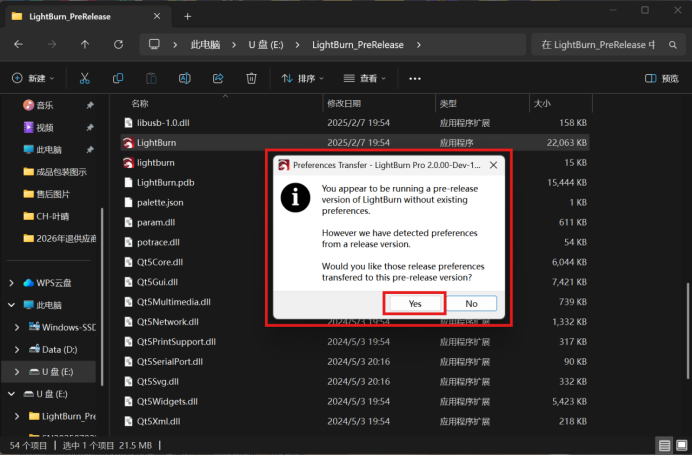
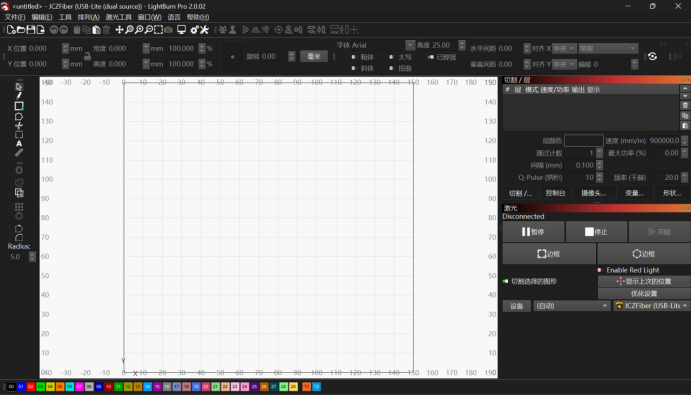
- Verify the version number, initiate the Software Update, and select a path for the new version. Wait for the system to complete the process and restart LightBurn.
¶ Verify Version
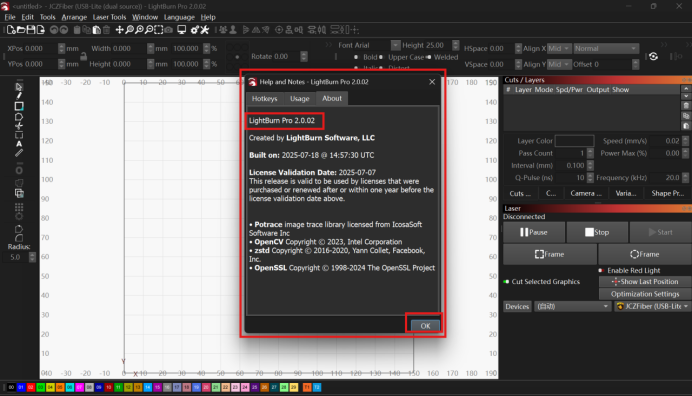
After the restart, launch LightBurn and navigate to the menu bar: Help → About LightBurn. Check the version number to confirm that the software has been successfully updated to the target version.
¶ 2. Key Precautions
- Before initiating an update, please ensure all active marking tasks are closed to prevent data loss or unexpected software termination.
- For online updates, ensure that your computer and the device are connected to a stable Wi-Fi network to maintain an uninterrupted connection.